
Branch Backup & Restore
Download a full branch backup and restore it later, including nodes, views, snapshots, wiki content, and images.
Use backup and restore to safely move or recover everything in a branch, including diagram data and images.
What gets backed up
A branch backup includes:
- nodes and edges,
- views,
- history snapshots,
- wiki pages and links,
- design review threads and comments,
- planning dependencies,
- node metadata,
- branch-linked PR metadata,
- images referenced by the branch.
Create a backup file
- Open the branch you want to export.
- Select the History tab to open its Timeline panel.
- Click Backup.
- Save the downloaded
.jsonfile.
Restore a backup file
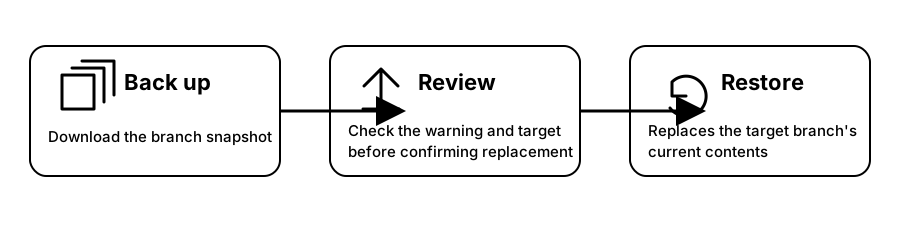
Warning: Restoring replaces the target branch's full current state with the contents of the backup. It is not a merge; branch data not present in the backup will be replaced. Before continuing, create a snapshot or download a backup of the current state.
- Open the target branch.
- Select the History tab to open its Timeline panel.
- Click Restore.
- Choose a backup
.jsonfile. Restore starts immediately; no second confirmation dialog appears. - Wait for the success message before continuing.
After restore, Nodeable refreshes the branch view so you can continue working with restored data.
Important behavior
- Backup and restore are branch-scoped (you cannot merge multiple backups in one restore action).
- Large branches with many embedded images may produce large backup files.
Recommended workflow
Before restoring:
- Create a new snapshot of the current branch.
- Optionally download a backup of current state.
- Run restore.
This gives you a quick fallback path if you need to return to the pre-restore version.
For creating, forking, and managing branches, see Branch Management.